Okay, it seems downloading and using a Python file isn’t quite as straightforward for many as I thought. So why not go about it step by step?
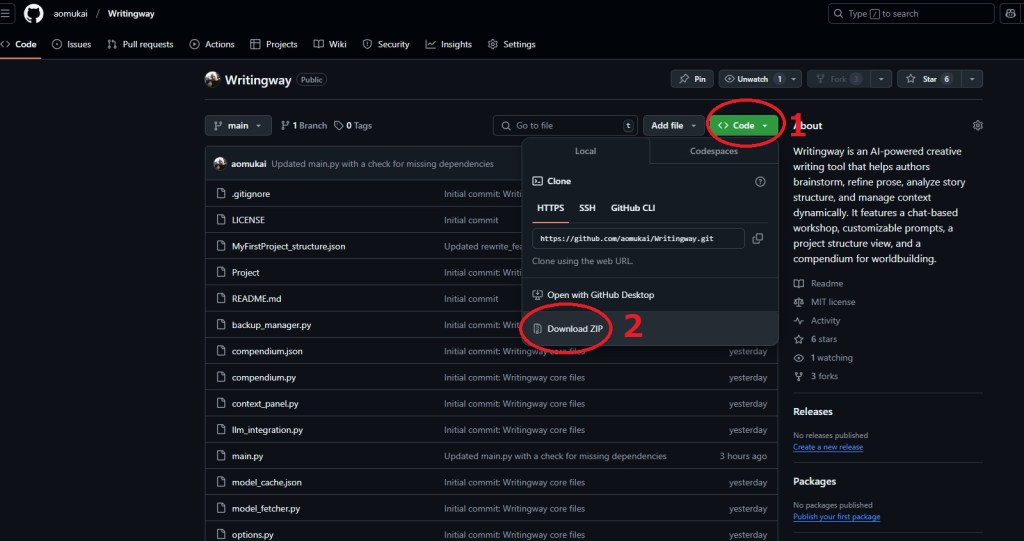
First things first, you need to download the file. You go to the repository and grab the file as shown in the screenshot:
First, you open the file and go into the folder inside the zip:
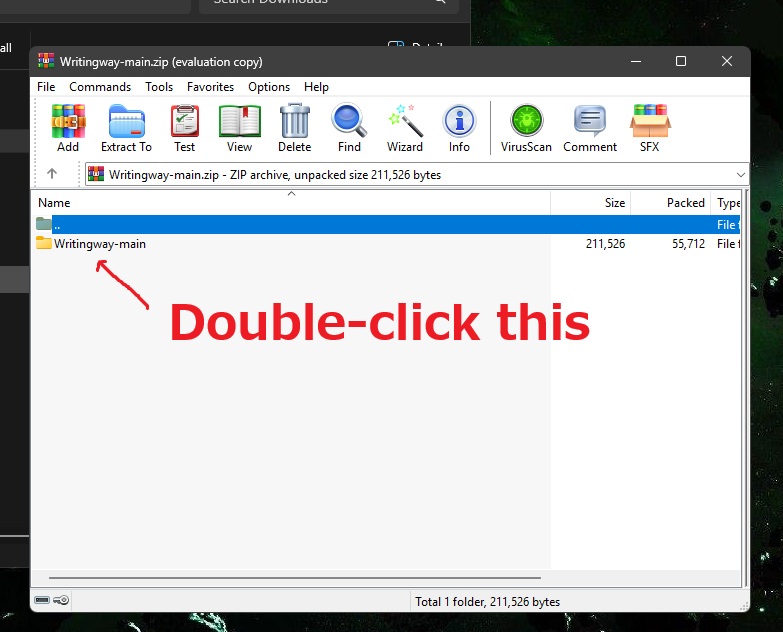
You unzip the file. In my example, I’m unpacking it to C:\writingway:

Now you open a console. You do this by pressing WIN+R
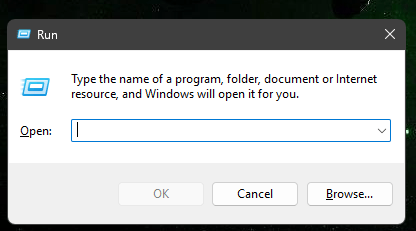
Type in “cmd” and hit Enter. You’ll now look at a screen kind of like this:
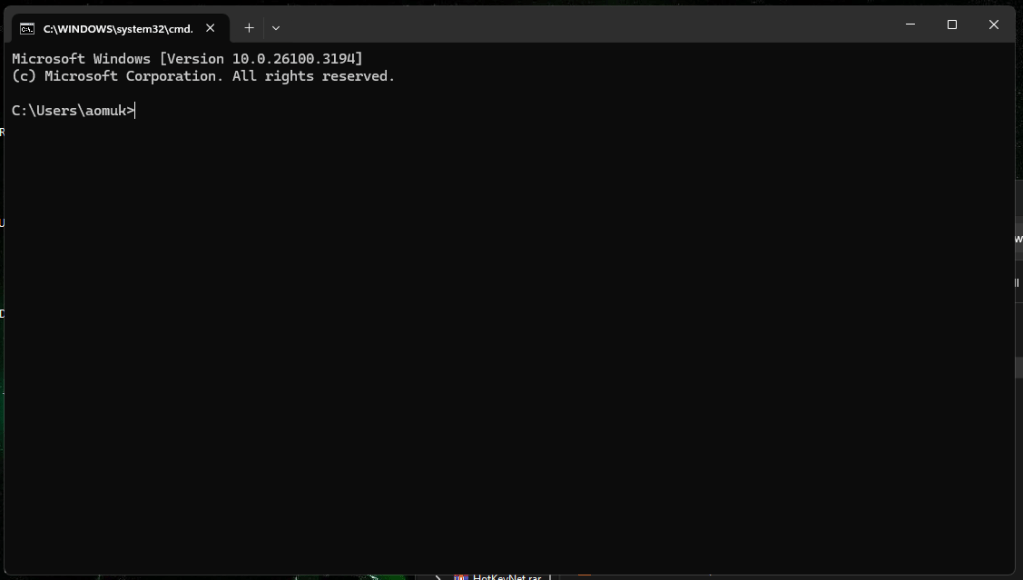
Now we navigate to the location of the file. In my case, I return to the root of the drive with “cd\”, followed by “cd writingway” to get there.
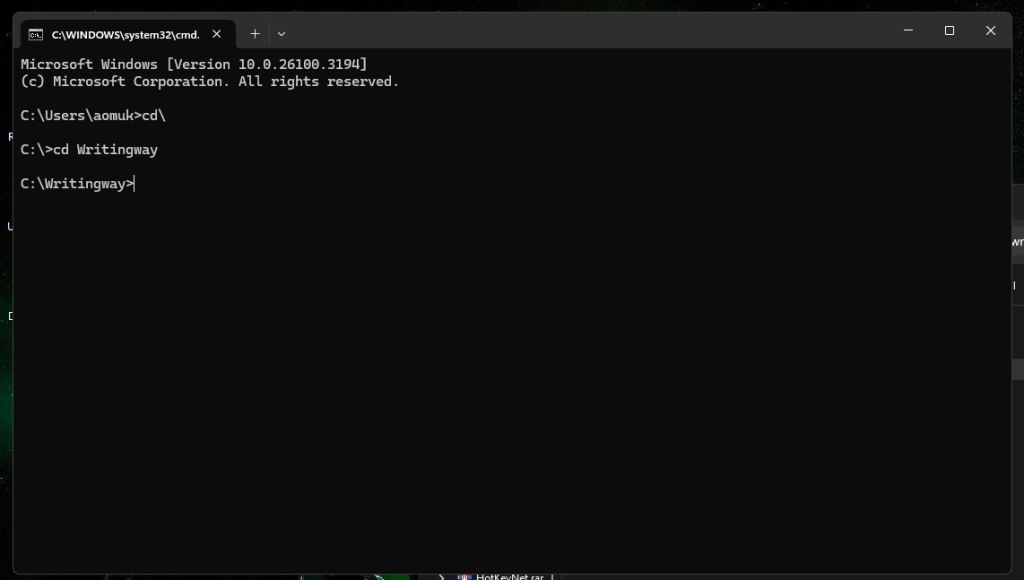
Now start it by typing “python main.py”. If you never ran a python script before, you will likely run into an error. Don’t worry. This means your system doesn’t have certain python files this program uses. If Windows opens its app store and presents you with Python for download, get it from there before you proceed. Type “pip install PyQt5 pyttsx3 requests” to get them.
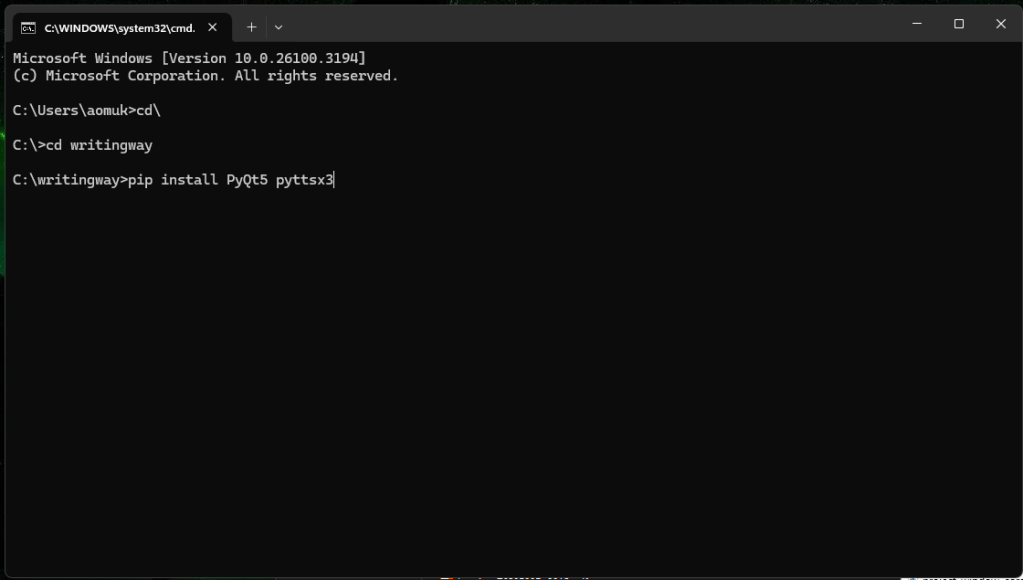
You won’t have to do this again. Next time, it’ll be ready to go. Now try it again, type “python main.py”, and it should run.
You could create a shortcut of your start.bat and start it via double-click in the future.
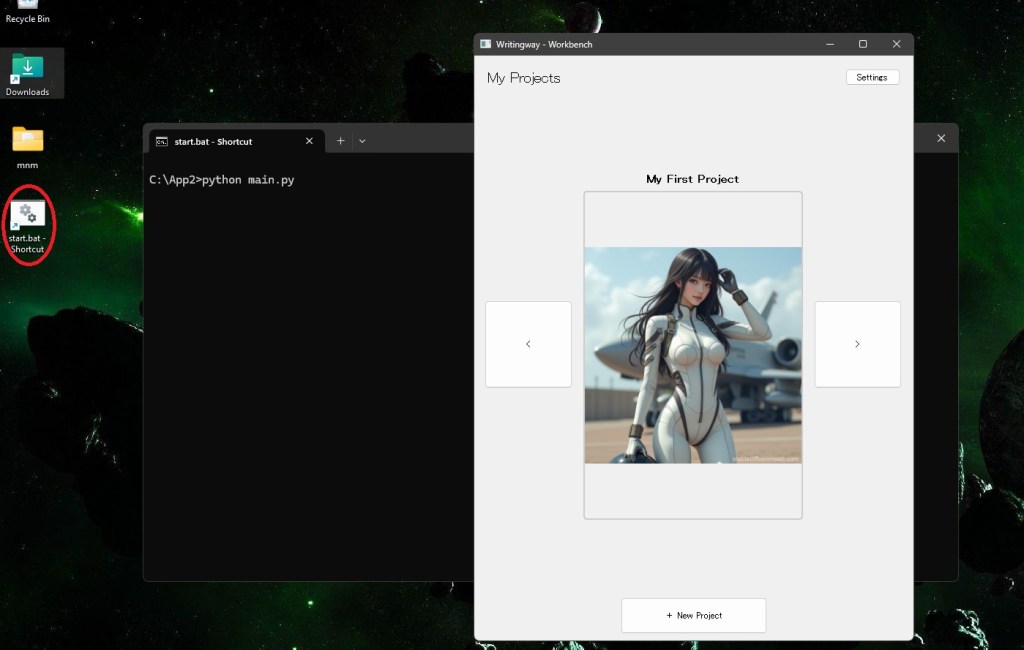
But that’s up to you.
If you still run into any problems, please let me know.
 A. Omukai
How do I install it on macbook
LikeLike
Great work! Wanted to write something like this as I was annoyed about raptor write. No need to – you did it the way I envisioned it myself. Thanks for an intuitive yet simple program.
LikeLike
Hi thank you for sharing this. After installing latest python 3.13 and got that installed. when i run python main.py the software doesn’t start. Please help me if you could, thank you once again
C:\Writingway-main>python main.py
Traceback (most recent call last):
File “C:\Writingway-main\main.py”, line 3, in
import whisper
ModuleNotFoundError: No module named ‘whisper’
LikeLike
After more troubleshooting with AI’s help. This is the latest error thank you for your help
C:Writingway-main>python main.py2026-01-01 21:27:04,176 – root – ERROR – Unhandled exceptionTraceback (most recent call last):File “C:Writingway-mainmain.py”, line 49, infrom workbench import WorkbenchWindowFile “C:Writingway-mainworkbench.py”, line 11, infrom project_window.project_window import ProjectWindowFile “C:Writingway-mainproject_windowproject_window.py”, line 18, infrom .scene_editor import SceneEditorFile “C:Writingway-mainproject_windowscene_editor.py”, line 15, infrom spylls.hunspell import DictionaryModuleNotFoundError: No module named ‘spylls’Traceback (most recent call last):File “C:Writingway-mainmain.py”, line 49, infrom workbench import WorkbenchWindowFile “C:Writingway-mainworkbench.py”, line 11, infrom project_window.project_window import ProjectWindowFile “C:Writingway-mainproject_windowproject_window.py”, line 18, infrom .scene_editor import SceneEditorFile “C:Writingway-mainproject_windowscene_editor.py”, line 15, infrom spylls.hunspell import DictionaryModuleNotFoundError: No module named ‘spylls’
LikeLike